Your documentation should be part of your development workflow, not something you have to leave it to find. The DocuWriter plugin brings that documentation into ChatGPT and Codex: generate technical explanations, search the knowledge your team has collected, and review updates as your codebase changes.
Generate. Maintain. Centralize. The same documentation platform, available from the conversation where you are already working.
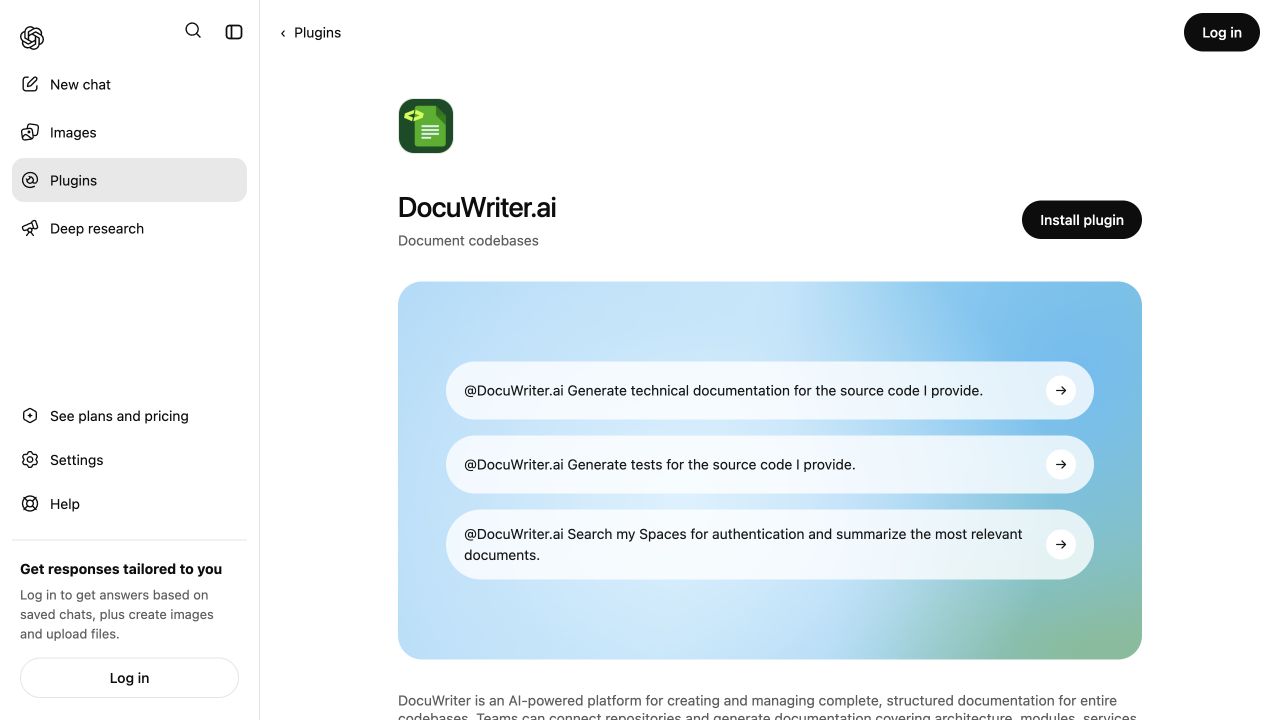
One documentation platform, inside your AI workflow
DocuWriter is an AI-powered platform for creating, updating and managing complete, structured documentation for entire codebases. Teams can connect repositories and generate documentation covering architecture, modules, services, classes, functions, dependencies, APIs, diagrams, READMEs, and other technical components. It supports both individual repositories and larger multi-repository systems.
The plugin connects your assistant to that platform. Spaces remain the home for your documentation, and your DocuWriter account determines which resources you can access.
- api/
- services/
- models/
- Architecture
- API reference
- Service guides
Generate documentation with a clear purpose
Ask for documentation that fits the task and the reader. You might need an API reference for a source file, an explanation of a module, or documentation from an imported repository through the supported repository workflows.
Generate an API reference for this source file. Explain the parameters, return values, and error handling. Write it in English for backend developers.
Attach or provide the source you want documented. The plugin also supports focused outputs such as READMEs, diagrams, tests, and release notes. These support the broader documentation workflow rather than living as disconnected tools.
Repository connection, initial setup, and some review steps take place in DocuWriter. Generation uses your account's available credits.
Find answers across your team's Spaces
A useful answer often already exists in your team's documentation. With DocuWriter connected, you can search accessible Spaces, read complete pages, and ask the assistant to explain what it finds with links to the source.
Find the onboarding documentation for our payments service. Read the relevant pages and summarize the setup steps with links.
You can also organize and update documentation through Space management tools. Be specific about the destination and the change you want:
Read the deployment guide in this Space. Draft a rollback section and show it to me before updating the page.
Your documentation stays in a shared, maintainable home instead of becoming another answer lost in chat history.
Maintain documentation as your code changes
Autopilot tracks changes in connected repositories and proposes documentation updates. Through the plugin, you can list suggestions, inspect them, and apply the changes you approve.
List the pending Autopilot suggestions for this Space. Explain what each suggestion changes. Don't apply anything yet.
- timeout: 30+ timeout: 60Request timeout: 60 seconds
- Inspect the suggestion
- Approve the change
- Update the page
Autopilot must be configured for the relevant Space and repository. Account permissions and plan requirements still apply; connecting the plugin does not grant additional access.
Three skills for the documentation lifecycle
The plugin includes three reusable skills that guide the assistant alongside the MCP tools that perform supported actions:
- DocuWriter overview: how codebase documentation, Spaces, and Autopilot fit together.
- Documentation lifecycle: guidance for generating, centralizing, and maintaining documentation.
- Official docs: finding product guidance in DocuWriter's published platform documentation.
Search official DocuWriter guides
When you need help using DocuWriter itself, official-docs search returns relevant guide excerpts with source links.
Search the official DocuWriter documentation for how to set up Autopilot. Summarize the steps and link to the guides.
This searches DocuWriter's public platform guides, not your team's private Spaces. Product instructions and internal project knowledge remain distinct.
Get started in ChatGPT or Codex
- Open the DocuWriter plugin listing and connect your DocuWriter account.
- Start with a read-only request: "List my DocuWriter Spaces with their IDs."
- Choose a Space, then ask a question about its documentation.
For connection instructions, follow the ChatGPT and Codex setup guide.
The goal is not more generated text. It is documentation your team can find, use, and keep current.