Your projects. Your teams. Your way of organizing knowledge.
Multi-space navigation is here. Bring related Spaces together with shared navigation and search. Build the structure that fits your documentation, whether you work across products, services, teams or audiences.
Choose the structure that fits
You choose the section names and the Spaces behind them. Here are three possible arrangements:
A section can show the parent Space, a top-level folder or another Space you manage. Repository boundaries do not have to dictate how readers navigate.
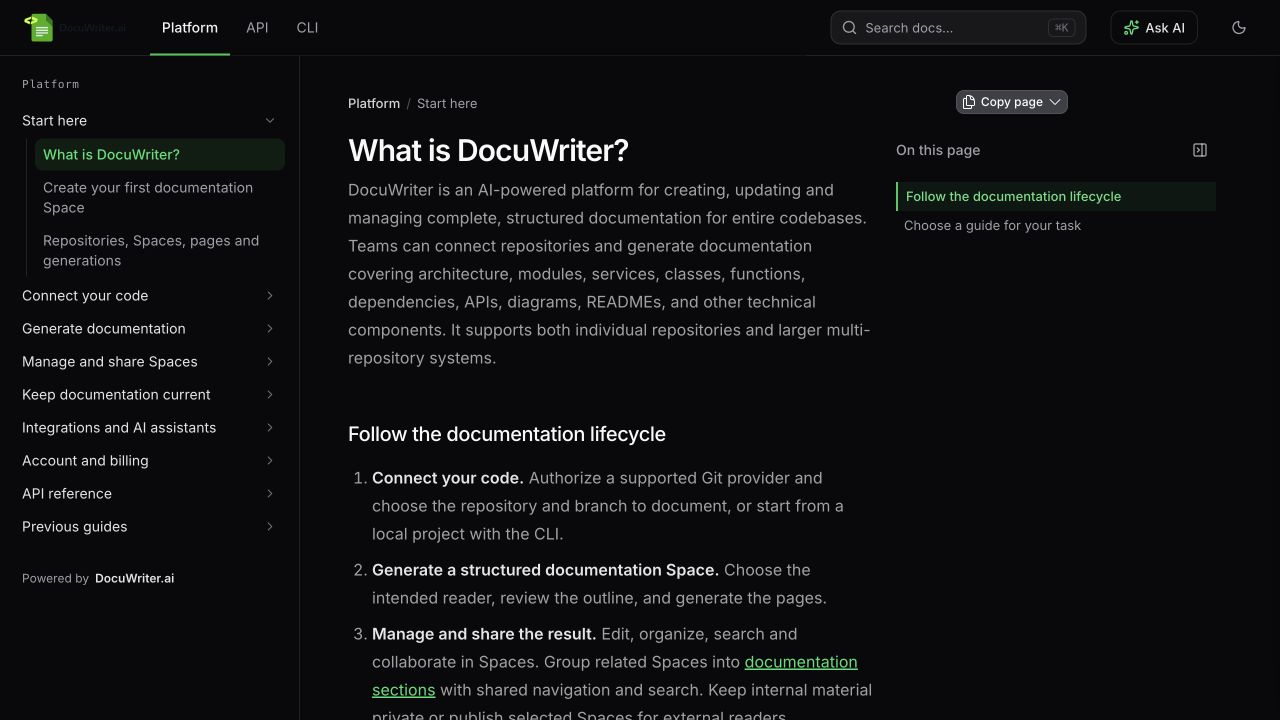
Independent Spaces, connected for the reader
Switch sections to see each area’s pages. Each Space keeps its content, editors, permissions, URLs and Autopilot settings.
 Enlarge screenshot
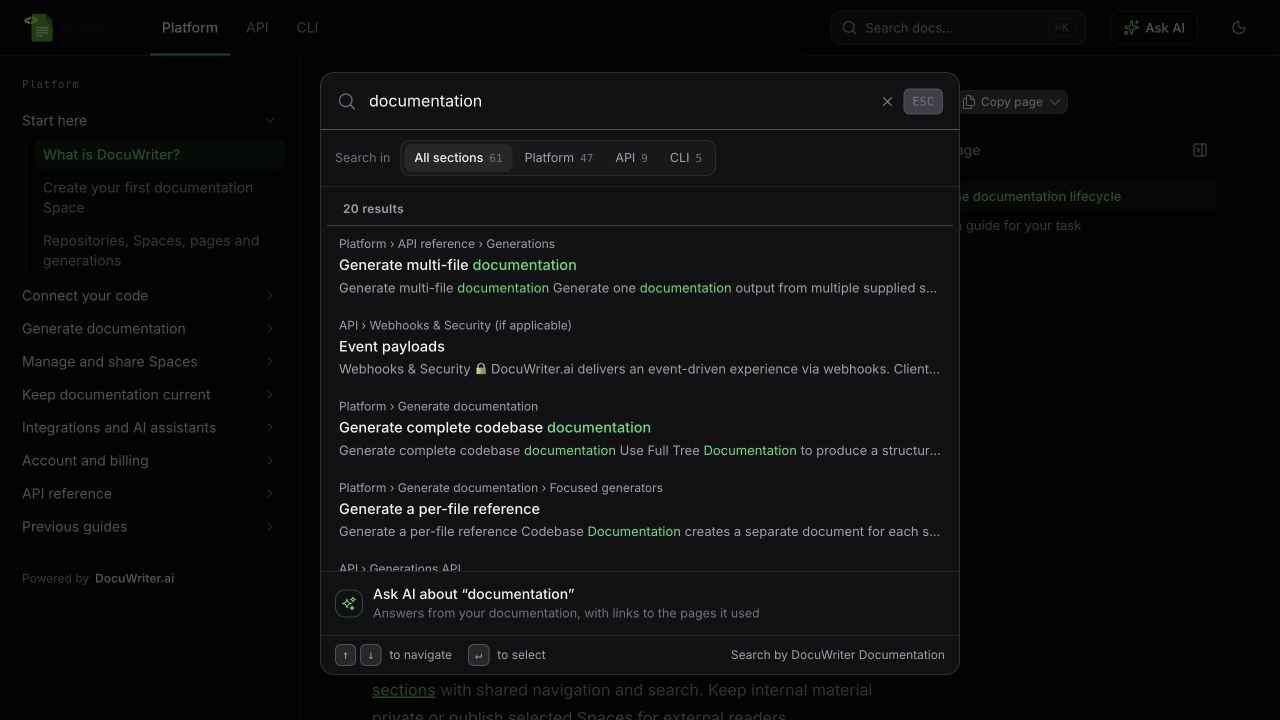
 One question. Search the connected docs.
Readers do not always know which project holds the answer. All sections searches eligible documentation across the site; section filters narrow the results.
 Enlarge screenshot
 In the signed-in app, choose Whole site to search linked Spaces. Access still applies: linking a private Space does not publish it.
Connect your Spaces in three steps
- 01Choose the parent Space
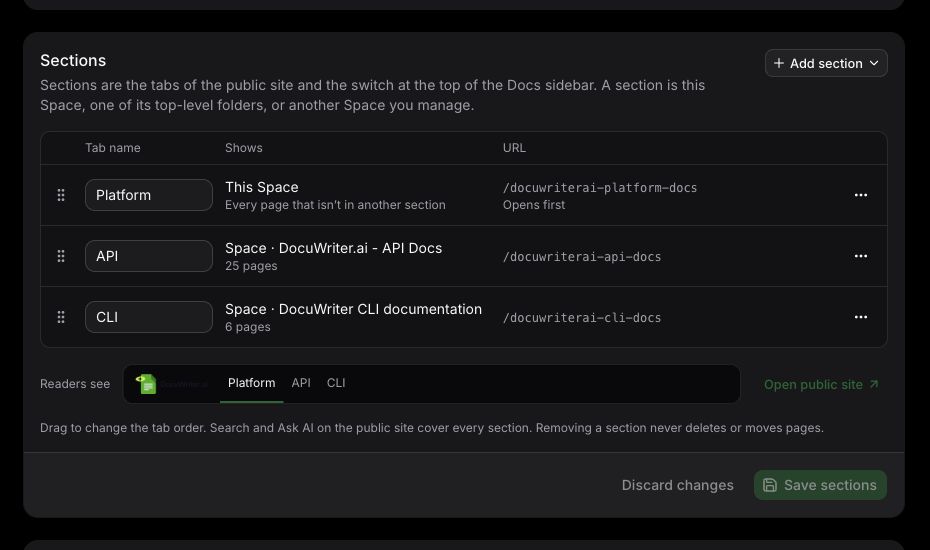
Open Settings → Sections.
- 02Add your sections
Pick Spaces or folders. Name and arrange them.
- 03Save and explore
Switch sections and try a search across them.
 Enlarge screenshot
 No copying pages or regenerating documentation. Folder sections share their Space’s access rules; a Space can belong to one documentation site at a time.
Explore our live example, or follow the complete setup guide. Starting with local code or Markdown? The new DocuWriter CLI brings it into a Space, ready to organize alongside the rest.